Discover our meetingOne service
Booking a room with a tablet
Several options can be activated according to your preferences:
- Have a visualization of the available rooms with blocks on the front page
- Choose the date and time on a calendar on the front page
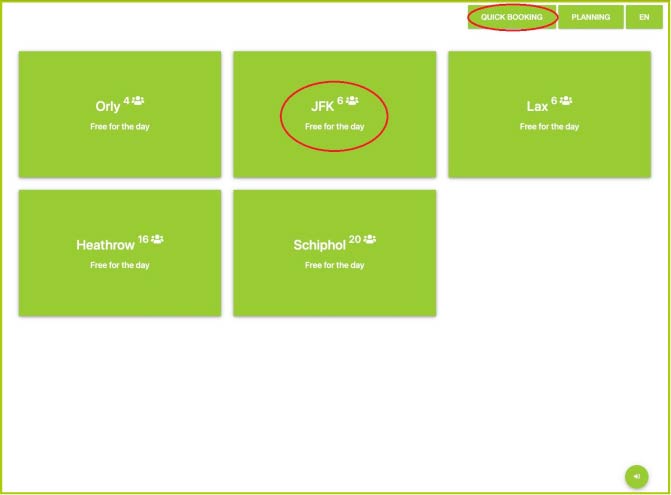
- The 2 options above are possible by activating the Quick-booking
- Without or with identification (mail and pin code)
- Possibility to invite only company email addresses or all emails
- Confirm attendance to the meeting
- Automatic cancellation after 15 minutes without confirmation.
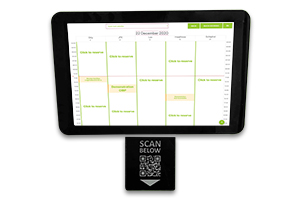
There are 2 possibilities depending on the layout of your meeting rooms.
You can have one tablet with all rooms listed, or one tablet next to each room with the calendar of that room displayed.
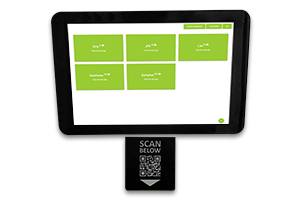
To book, head to a/the tablet (as above) and follow the steps below:
1a) Choose your room (Block version)
On this page, you will be able to click on a meeting room you wish to book.
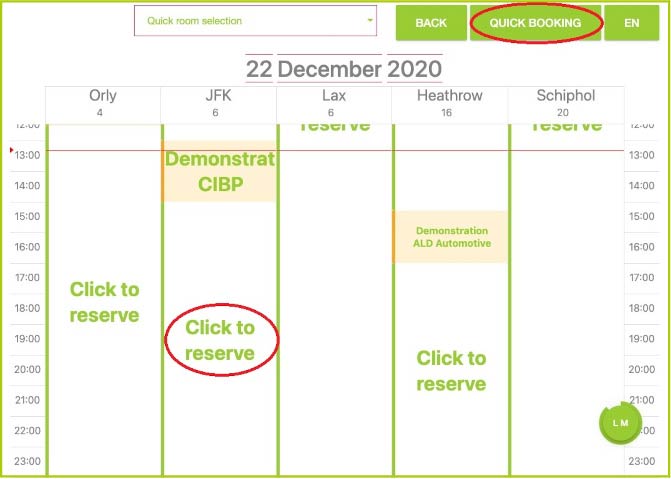
1b) Choose your room (Version avec calendrier)
On this page you will be able to select the time and date you want if these are available.
2) Log in
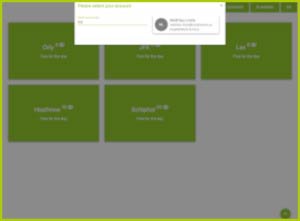
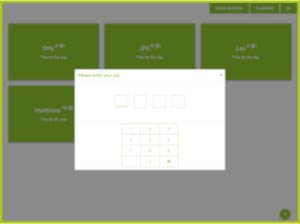
If the login option is chosen, a window will open to log in
with your e-mail address and/or PIN code.
3) Finalise your booking
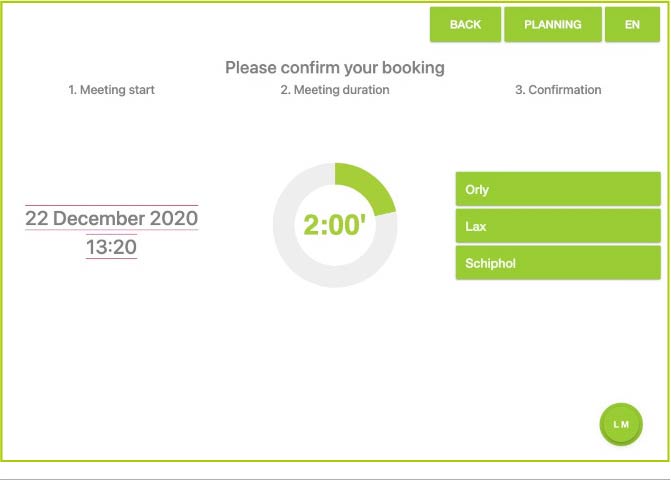
After registration, you can select the following information:
- Date and time on the left
- Duration
- The meeting room
The meeting organiser and guest will receive a confirmation e-mail.
The meeting is now booked
The meeting organiser and guest will receive a confirmation e-mail.
Book a room by meeting request from your mailbox
Each meeting room has its own email address which will be communicated to you.
To reserve a meeting room, send a meeting request to the email address of the meeting room
the meeting room, as well as to the people you wish to invite.
Beware, only email invitations from your registered address will be accepted!
If the room is not available at the date and/or time chosen, you will receive an email informing you that the invitation has not been accepted.
To view availability, simply go to your platform and go to the MeetingOne-Calendar tab. You will see the calendar for each room with its availability.
If the meeting room is available at the date and time you selected, you will receive an email confirming the booking.
Book a room via your outlook calendar
In order to view availability, it is possible to integrate the calendars of each meeting room into your own calendar.
Add a calendar
- Go to the “Calendar” tab in your Outlook program.
- Right click on “my calendars.”
- Drag your mouse over “add a calendar”.
- A window opens, then click on “From the internet…”
- A new window opens where you can enter the web link of a calendar that will also be sent to you.
- then click on “OK
- Accept the updates of the room of this calendar by clicking on “Yes” in the window that has just opened.
- The calendar is added under the name “Untitled”. You can rename this calendar so that you know which room it belongs to. <To do this, right click on “Untitled” and choose the option “Rename Calendar”.
- You will now have access to the schedule preview of the desired meeting room. You can check it in the left column to see both schedules on the same page.
Book
To book a meeting room, right click in your calendar on the desired day and time and select “New meeting request”.
Do not make a reservation on the meeting room calendar, reservations will only be made through your calendar.
In this new window we will enter the parameters for our future meeting. Here is how to proceed:
- Encode the email address of the meeting room + those of the participants.
(Make contacts of the meeting rooms email addresses for ease) - Encode the subject of the meeting.
- Add the address or just the name of the room.
- The date and time of the meeting.
- A comment.
- To validate your meeting you will have to finalize it by clicking on “Send”.
Check the email address that will make the meeting request in the case of several accounts in your outlook, it is necessarily an email address encoded and and validated in the reservation system that will be authorized.
The meeting is now booked
The meeting organiser and guest will receive a confirmation e-mail.
Book a room on the platform
The Calendar tab
In this tab you will find a calendar with the different rooms on the left and the dates and times above.
This will allow you to see the availability of each room.
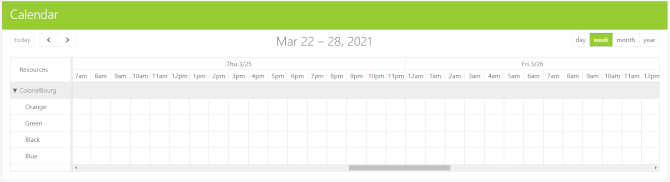
You can choose to view the calendar by day, week, month or year by selecting your choice on the top right button.

Bookings tab
This tab is used to view the meetings that have taken place and those that will take place. All of the following information is recorded here:
- The room where the meeting took/takes place
- Which company has booked the room
- In which building it will take place
- On which floor it will take place
- The date and time it started and the date and time it ended
- The person who organised this meeting
- The topic
- Comments
- Number of participants
- Status
- Creation day
Booking
To book a meeting room, click on the  button at the top right of this Bookings page.
You will be taken to a page where you will be asked for various information.
button at the top right of this Bookings page.
You will be taken to a page where you will be asked for various information.
Select organizer
The people that can be selected are the people registered in the “User profiles”.
When
Choose the date, start time and end time.
Who
Indicate the number of participants.
What
Introduce a topic along with a description and comment.
Where
The meeting rooms available at the selected date and time will be displayed.
Select the desired room and click on 
The meeting is now booked
The meeting organiser and guest will receive a confirmation e-mail.
Questions?
Do not hesitate to contact our helpdesk if you need more information.
 support@creativeone.eu
 +32 10 23 39 60
+32 2 880 79 90
+32 10 23 39 60
+32 2 880 79 90